Diagrams
Content may include inaccuracies, outdated information, or technical errors. Users are advised to cross-check critical information before implementation.
A diagram shows the model rather than holding a copy of it. Its nodes refer to elements and its edges to relationships, so one element may appear on several diagrams and an edit anywhere changes the model.
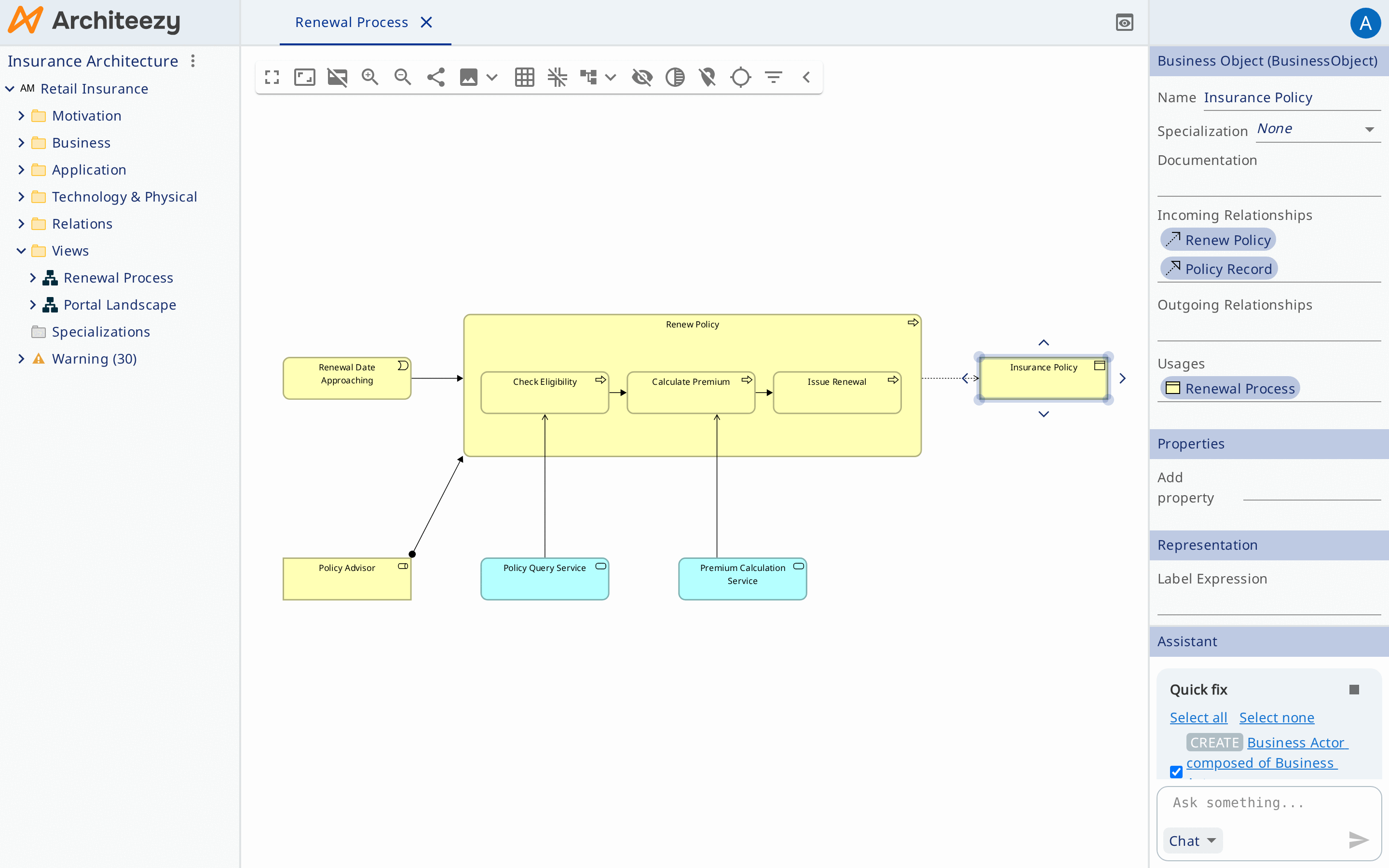
Everything below works the same in every notation; which element and relationship types are allowed is up to the notation.
Creating elements
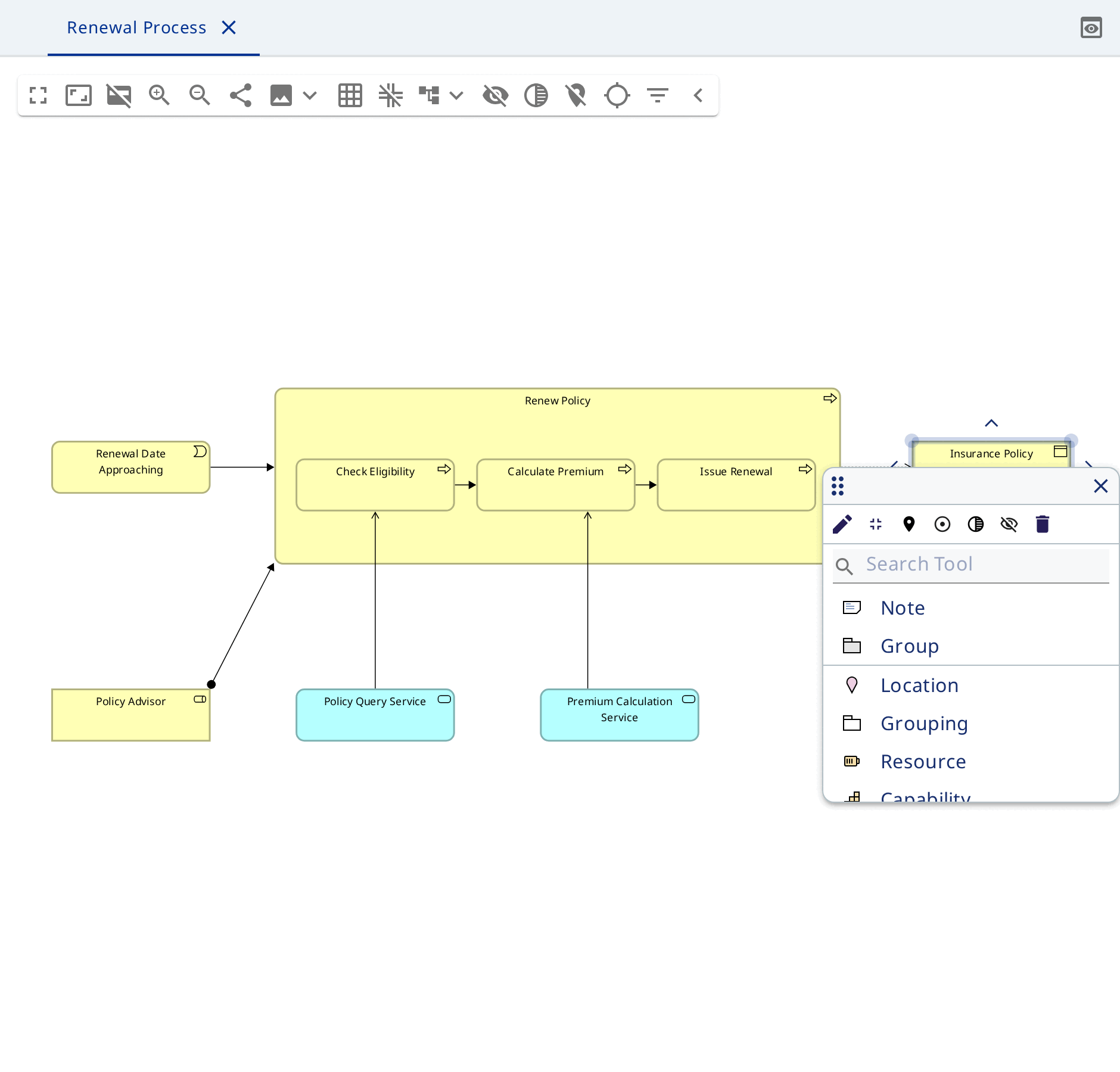
Click the canvas. The palette opens with the types allowed here, and the element appears where you clicked.
The name is typed straight after creation. Later it is edited on the canvas with F2, in the model explorer or in the properties form.
The palette of a container differs from the palette of the empty canvas: it offers the types allowed inside that container.
Creating relationships
Hover over an element and handles appear on its border. Drag from a handle onto another element.
When one relationship type is allowed, it is created straight away. When several are, a list opens. When none is, nothing is created and a notification says why.
To redirect a relationship, drag its end onto another element; valid targets light up.
Nesting
Drag one element into another. If the notation allows a relationship between them, a dialog offers the types: nesting means a relationship in the model.
While the element is nested no line is drawn. Drag it out and the line appears.
Dropping from the model explorer
Drag an element from the model explorer onto the diagram. Relationships between it and the elements already there are drawn by themselves.
This is how a second diagram over the same elements is built - another slice of the model for another reader.
Routing and layout
A relationship has a routing style: Manhattan uses horizontal and vertical segments only, Oblique straight diagonal ones.
Connections are re-routed as elements move. Add a bendpoint and the connection leaves automatic routing and keeps the shape you gave it. Reset bendpoints returns it to the router, Reset handles position puts both ends back in the centres of their sides.
Appearance
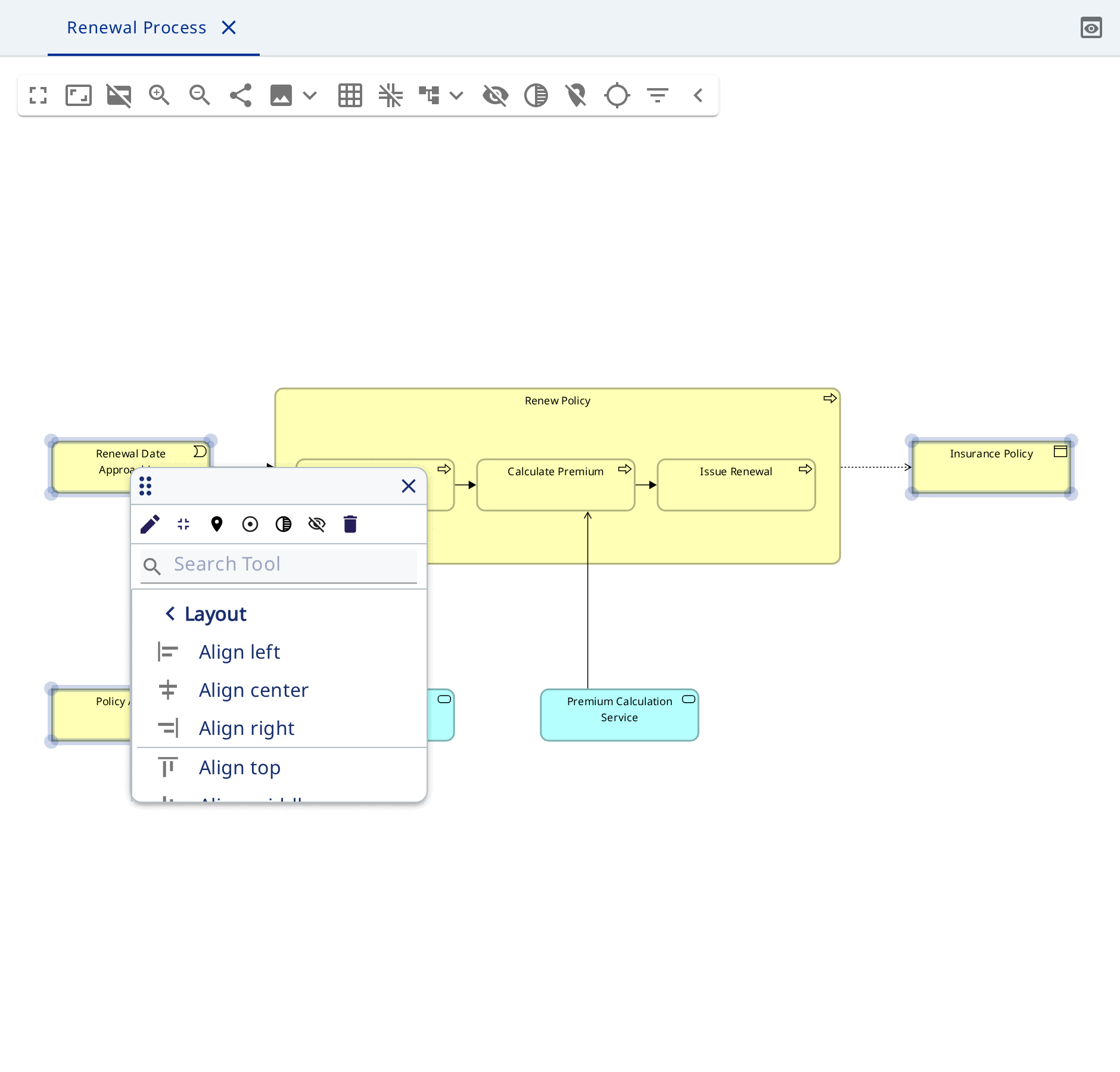
Colours and line styles come from the notation. The form of the selected object overrides them: fill colour and transparency, line colour and width, font, text alignment. Clearing an override restores the value of the notation.
Defaults may also be set on a diagram, and new content on it picks them up.
Export
The export button on the diagram toolbar saves it as PNG or SVG. The model as a whole is exported with Download on the model, see File formats.