Uploading a model
Content may include inaccuracies, outdated information, or technical errors. Users are advised to cross-check critical information before implementation.
A model created in another tool is added to a project as a file. ArchiMate exchange files, IFC building models, EMF resources and models downloaded from another Architeezy project are all uploaded this way.
Upload a file
- Open the project menu and choose Upload model.
- Drag the file into the dialog, or click the area and pick it.
- Wait for the notification that the file is uploaded.
The model appears in the model explorer under the name of the file. Its type
comes from the file: .archimate gives an ArchiMate model, .ifc an IFC model.
| Extension | What comes in |
|---|---|
.archimate | ArchiMate model from Archi |
.ifc | Building model in IFC STEP |
.json, .xmi | Model downloaded from Architeezy |
.ttl | Model as RDF |
The list of formats a notation reads is on File formats.
Check the result
Expand the model in the model explorer. If the file contained representations, they are uploaded as well.
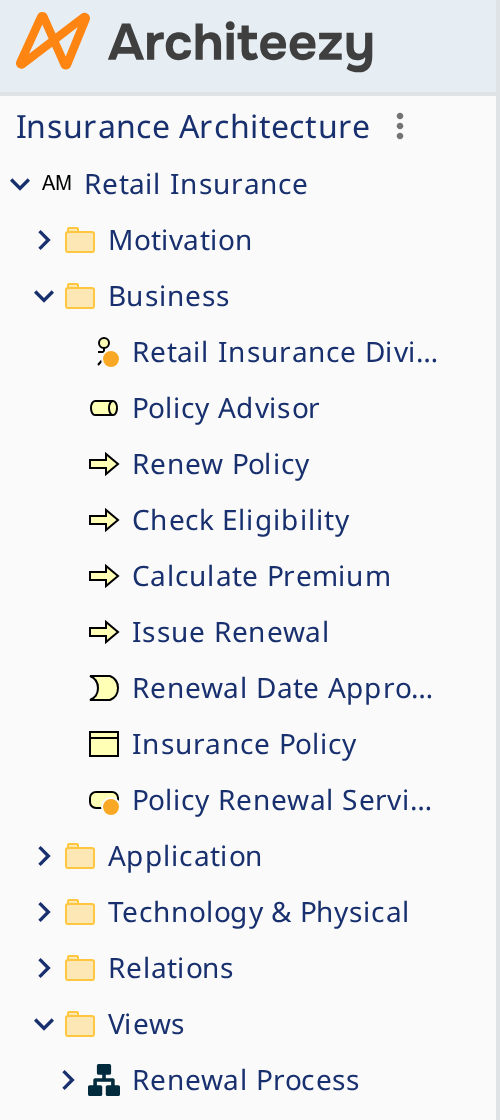
An uploaded model is validated like every other one, so notices may appear next to it: the rules of Architeezy are stricter than those of the tool the file came from.
Download
Download in the context menu of a model saves it to a file; the set of formats depends on the notation. A downloaded model uploads into another project unchanged - that is how models are moved between projects and installations.