Elements and relationships
Content may include inaccuracies, outdated information, or technical errors. Users are advised to cross-check critical information before implementation.
Elements are placed on a diagram from the palette, relationships are drawn between elements. The editor follows the rules of the language: it offers only the concepts allowed by the viewpoint of the diagram, and only the relationships allowed between the two element types.
The techniques common to all diagrams are described in Diagrams.
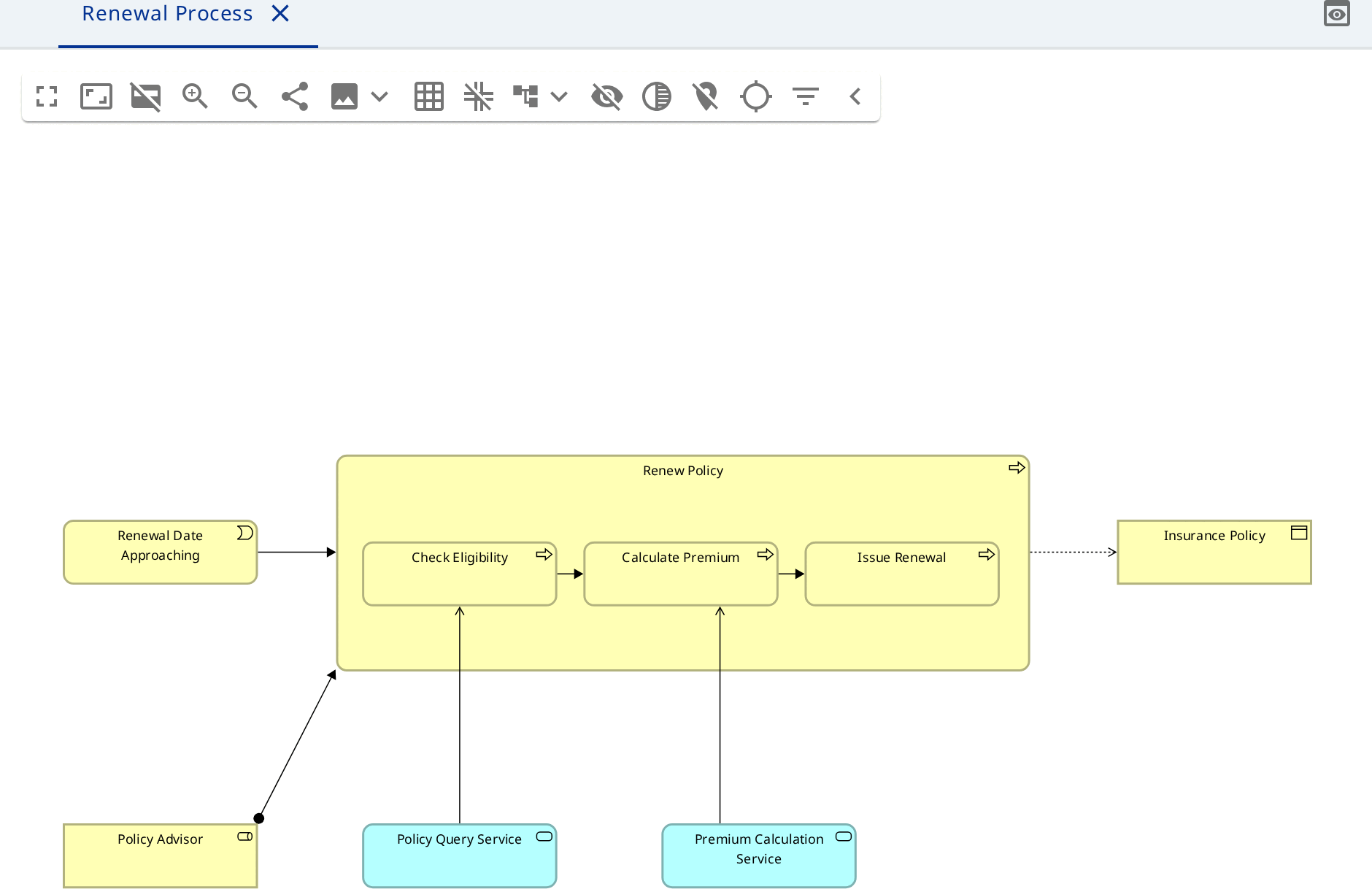
Elements
- Click the canvas. The palette opens, grouped by layer, from Note and Grouping to Junction.
- Pick Business Process - the element appears where you clicked.
- Type the name
Renew Policyand press Enter. - Place a Business Role
Policy Advisorthe same way.
Both elements appear in the Business folder.
Relationships
Hover over Policy Advisor and drag from a handle on its border onto
Renew Policy.
If the language allows one relationship between the two types, it is created straight away. If several are allowed, a list opens - here Assignment, Association and others. If none is allowed, nothing is created and a notification explains why.
Nesting
Drag a second Business Process into Renew Policy. A dialog offers the
relationship types allowed between container and content and preselects the
strongest: Composition, then Aggregation, Access, Assignment, Realization.
- Confirm, and the relationship is created. No line is drawn; the relationship is shown by the nesting.
- Choose None, and the element is nested without a relationship. Such an element gets a validation notice.
- Cancel the dialog, and the drag is undone.

If several nodes are dragged at once, the dialog has one row per node.
The same dialog opens when an element is created from the palette of a container and when an element is dragged from the model explorer onto a container.
Junctions
Place a Junction and attach relationships to it. The first relationship sets the type, the rest have to be of the same type. The switch in the form changes the junction between and and or.
Specializations
Open Specializations on the model, choose New specialization, enter a name and pick Element type. A specialization appears at the top of the palette on every diagram of the model and may have an icon of its own.
An element already placed takes a specialization through the Specialization field of its form; the list holds only the specializations of a matching base type.
Grouping, Group and Note
The three look alike but mean different things:
- Grouping is an ArchiMate element. It is stored in the model, in the Other folder, and takes part in relationships. Use it when the grouping is part of the architecture: a domain, a bounded context.
- Group is a visual object with no meaning in the model. It fences off part of the picture.
- Note is free text, with an image where needed, connected to elements.