Add images
To tell business and system requirements apart at a glance, add an SVG image for each type. Draw them yourself in a graphics editor or reuse the examples in this guide.
Create a file named BusinessRequirement.svg:
<svg xmlns="http://www.w3.org/2000/svg" viewBox="0 0 200 70" width="200" height="70"
     preserveAspectRatio="none">
  <rect class="stroke stroke-dasharray"
        x="1" y="1" width="198" height="68" rx="3"
        fill="white" stroke="#bfbfbf" stroke-width="2"
        vector-effect="non-scaling-stroke" />
  <path class="fill fill--stroke"
        d="M4 1 H196 a3 3 0 0 1 3 3 V5 H31 V69 H4 a3 3 0 0 1 -3 -3 V4 a3 3 0 0 1 3 -3z"
        fill="#f59e0b" stroke="#f59e0b" stroke-width="2"
        vector-effect="non-scaling-stroke" />
  <rect x="7" y="25" width="18" height="22" rx="2"
        fill="none" stroke="white" stroke-width="2" />
  <path d="M12 25v-3h8v3 M11 30h10 M11 35h10 M11 40h6"
        fill="none" stroke="white" stroke-width="2"
        stroke-linejoin="round" stroke-linecap="round" />
  <rect id="label" x="33" y="7" width="164" height="60" fill="none" />
</svg>
Create a file named SystemRequirement.svg:
<svg xmlns="http://www.w3.org/2000/svg" viewBox="0 0 200 70" width="200" height="70"
     preserveAspectRatio="none">
  <rect class="stroke stroke-dasharray"
        x="1" y="1" width="198" height="68" rx="3"
        fill="white" stroke="#bfbfbf" stroke-width="2"
        vector-effect="non-scaling-stroke" />
  <path class="fill fill--stroke"
        d="M4 1 H196 a3 3 0 0 1 3 3 V5 H31 V69 H4 a3 3 0 0 1 -3 -3 V4 a3 3 0 0 1 3 -3z"
        fill="#94a3b8" stroke="#94a3b8" stroke-width="2"
        vector-effect="non-scaling-stroke" />
  <path d="M6 25h7c0-4 6-4 6 0h7v7c4 0 4 6 0 6v7h-7c0-4-6-4-6 0H6v-7c4 0 4-6 0-6z"
        fill="white" />
  <rect id="label" x="33" y="7" width="164" height="60" fill="none" />
</svg>
Some elements in the SVG files carry CSS classes. They let the shape change color and style according to the object's attributes.
Available styling parameters:
- fill - primary fill color
- stroke - primary border color
- stroke-width - primary border width
- stroke-dasharray - primary border style
- secondary-fill - secondary fill color
- secondary-stroke - secondary border color
- secondary-stroke-width - secondary border width
- secondary-stroke-dasharray - secondary border style
Set high-priority business requirements to appear in red, and Architeezy finds
every element with the fill class in the SVG and replaces its fill
attribute with red.
If your shape color is defined via the stroke attribute, use the combined
class fill--stroke. The naming convention is: [styling parameter]--[SVG
attribute].
The SVG also includes a rectangle with the ID label. It defines the area where the object's name is drawn, so the text does not overlap the icon on the left.
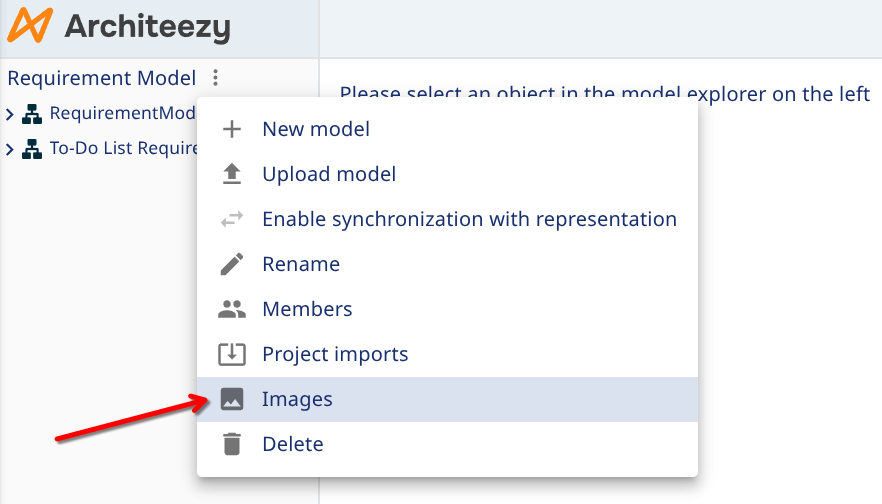
Open the project menu and go to Images, then upload the files you created:
Select the BusinessRequirement class in your metamodel, and in the Representation section of the properties form, choose the uploaded image from the dropdown:
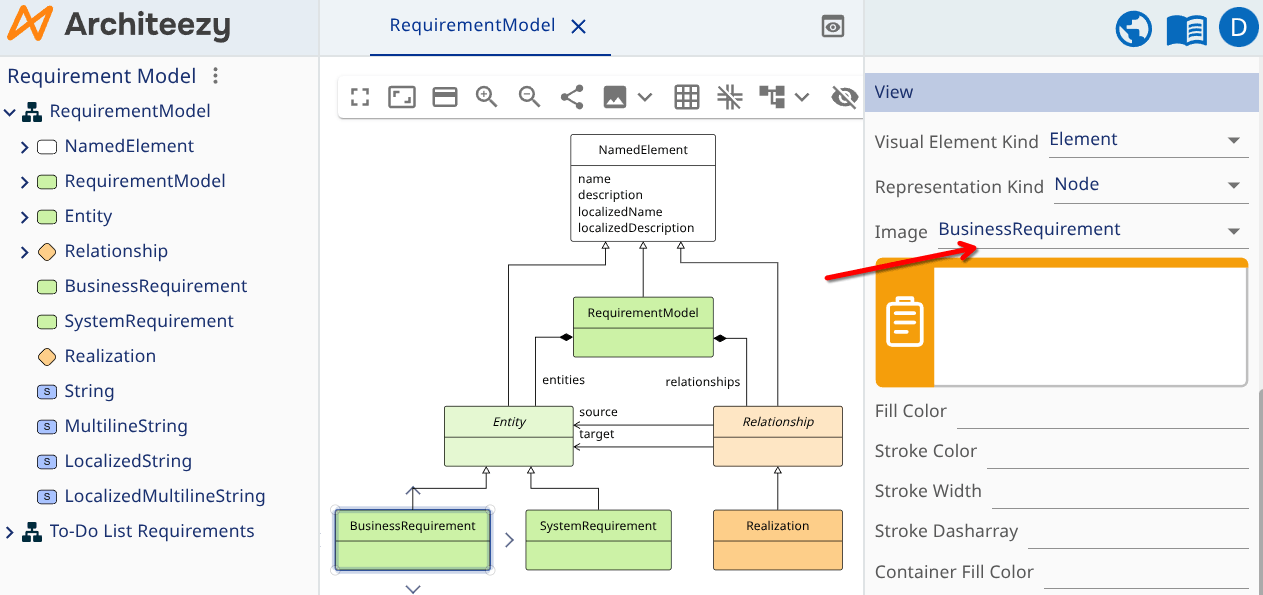
Repeat the same steps for SystemRequirement.
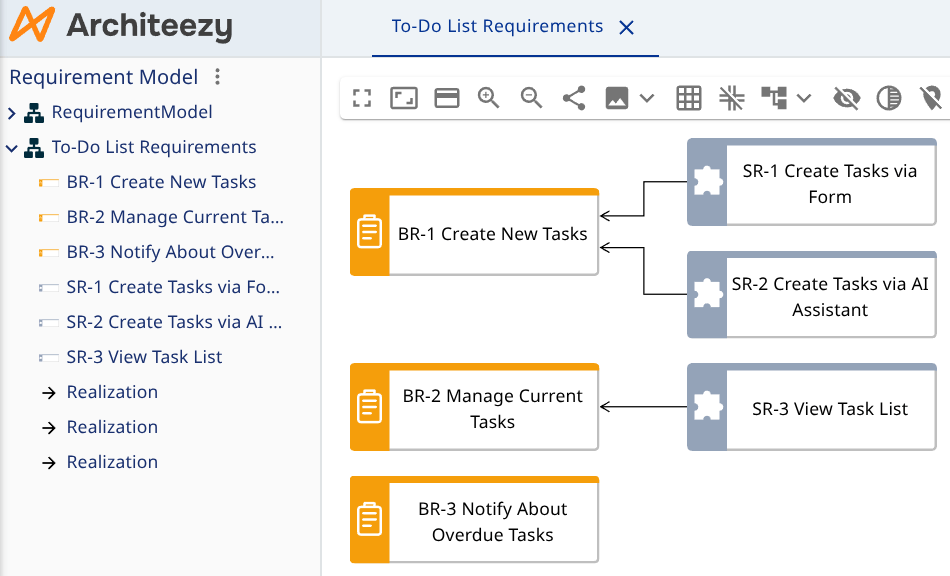
Now open your requirements model and verify that the diagram displays the new icons instead of the default rectangles: